Test Mode
Test Mode is a debugging tool for admins and implementers. It helps you see what Autofill is sending to AI and how Autofill handles the response before you rely on the live editor workflow.
Use Test Mode when a field is not generating the kind of suggestions you expect, when you are tuning prompts, or when you want to understand how context fields and current entry values are included.
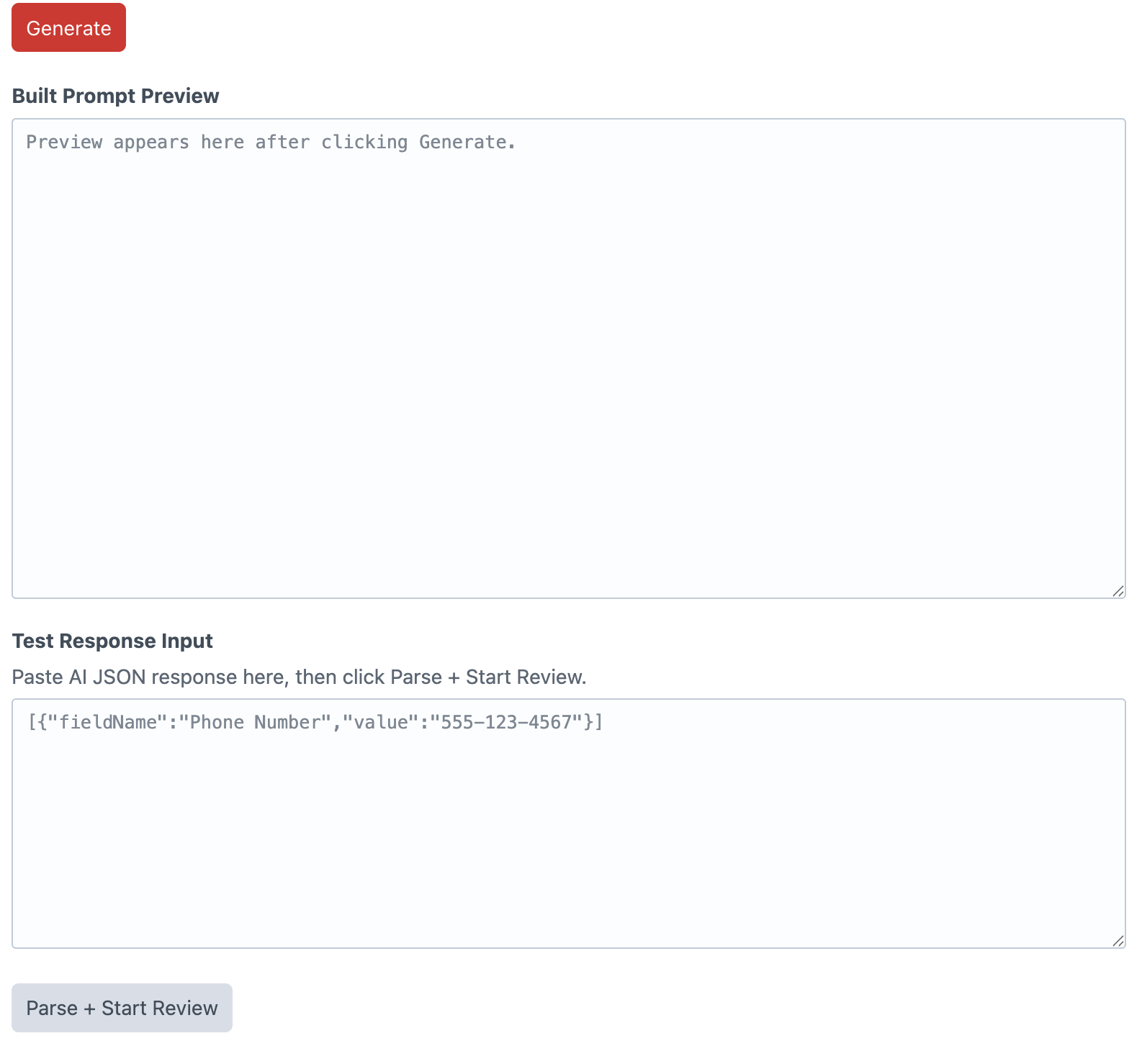
Prompt Preview
In Test Mode, clicking Generate builds the prompt preview instead of sending a live AI request. The preview shows the global prompt, editor input, context fields, generation rows, field contracts, and expected response format.
This is useful when you want to confirm that the model is receiving the right instructions and enough context to fill the configured fields.
Prompt Writing Tips
Autofill works best when the field prompts are specific. The model needs clear instructions about what each field is for, what style to use, and what kind of value should be returned.
- Use the Global Prompt for shared rules like brand voice, audience, formatting, compliance guidance, or SEO direction.
- Keep generation row prompts focused on one field at a time.
- Tell the model what good output looks like: length, tone, format, allowed values, or examples.
- Use context rows for source-of-truth fields that should guide the generated values.
- Use Test Mode when a prompt is unclear, too broad, or producing inconsistent results.
If a generated result is not useful, the prompt preview is usually the best first place to look. It shows whether Autofill is giving the model enough context and whether the row instructions are clear enough for the field being filled.
Testing a Response
Test Mode includes a response input where you can paste JSON and click Parse + Start Review. This lets you test whether Autofill can match fields, normalize values, and open the review flow with the response shape you expect.
The response should be valid JSON, either as a suggestions array or as an object with a suggestions or result array. Each suggestion should include a fieldName and value.
When to Use Test Mode
- Checking what prompt Autofill sends to AI
- Tuning global prompts or row prompts
- Confirming context fields are included correctly
- Debugging unexpected or invalid AI responses
- Testing field matching and review behavior without making live generation part of the editor workflow
Test Mode is not meant to be the everyday editor experience. Once setup is working, disable Test Mode so editors see the normal Autofill workflow.