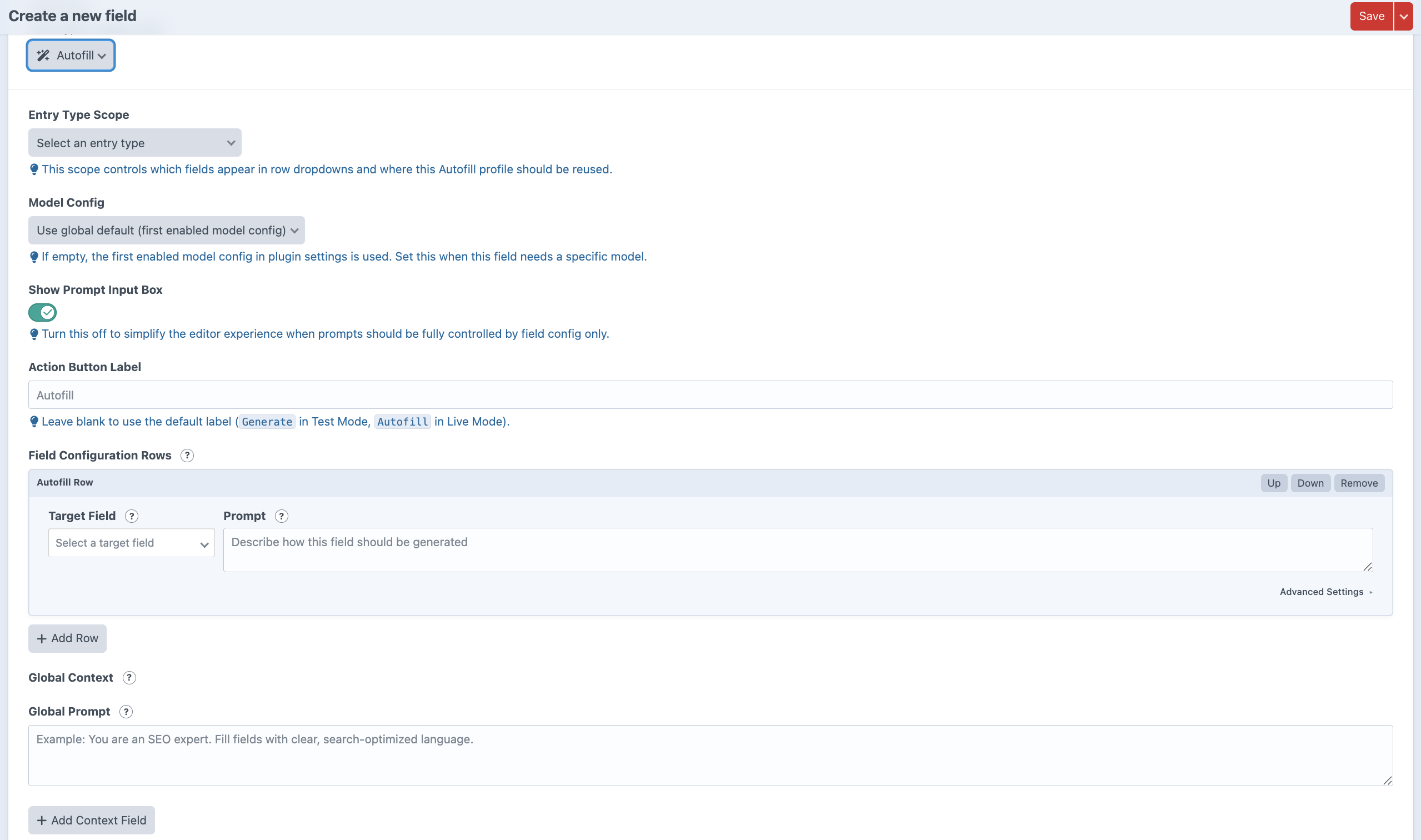
An Autofill field is the reusable profile that controls what editors can generate from an entry edit screen. It connects an entry type, an optional model configuration, shared instructions, and one or more generation rows.
Most projects will create one Autofill field per editorial workflow. For example, a product entry type might have one Autofill field that drafts product summaries, SEO text, and structured details from text-based source notes.
Entry Type Scope
The entry type scope tells Autofill which entry type this field is designed for. Once selected, Autofill can show supported native and custom fields from that entry type in the target field and context field dropdowns.
Native entry fields include Title, Slug, Post Date, Expiration Date, and Enabled. Supported custom fields appear based on the adapters available in Autofill.
Model and Editor Controls
Each Autofill field can use the global default model configuration or choose a specific enabled model config. Leave the field setting blank when the first enabled model config should be used.
The Show Prompt Input Box setting controls whether editors see a prompt textarea on the entry edit screen. Turn it off when the field configuration should fully control the prompt and editors should only click the action button.
The Action Button Label lets you customize the button text. If left blank, Autofill uses Generate in Test Mode and Autofill in Live Mode.
Generation Rows
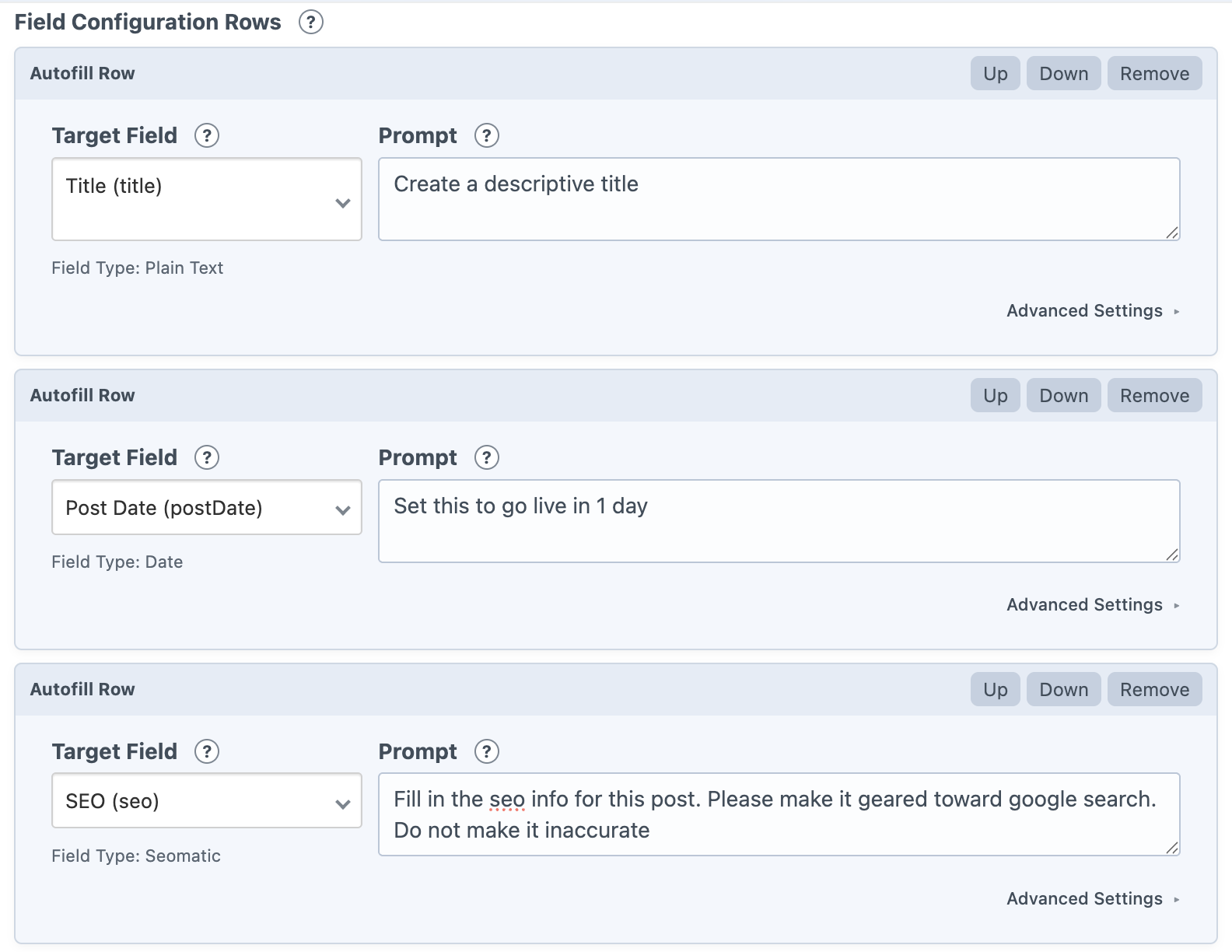
Generation rows are the heart of an Autofill field. Each row targets one field and gives AI a field-specific instruction. Rows run in order and should be written as clear, direct prompts.
A simple product entry might have one row for a short summary, one row for SEO title, and one row for SEO description. Each prompt should explain only what that target field needs.
Global Context
Global Context gives Autofill shared guidance that applies to every generation row. It is a good place to capture the editorial rules that should stay consistent no matter which editor is working on an entry.
Use the Global Prompt for broad instructions such as brand voice, formatting rules, audience, SEO guidance, compliance requirements, or field-writing standards. This can help newer editors understand how specific fields should be approached and gives experienced editors a shared baseline to work from.
Context rows let you include existing field values as read-only reference material. Context fields are not updated by those rows; they simply help the model understand the entry and make better suggestions for the fields it is filling.
Advanced Row Settings
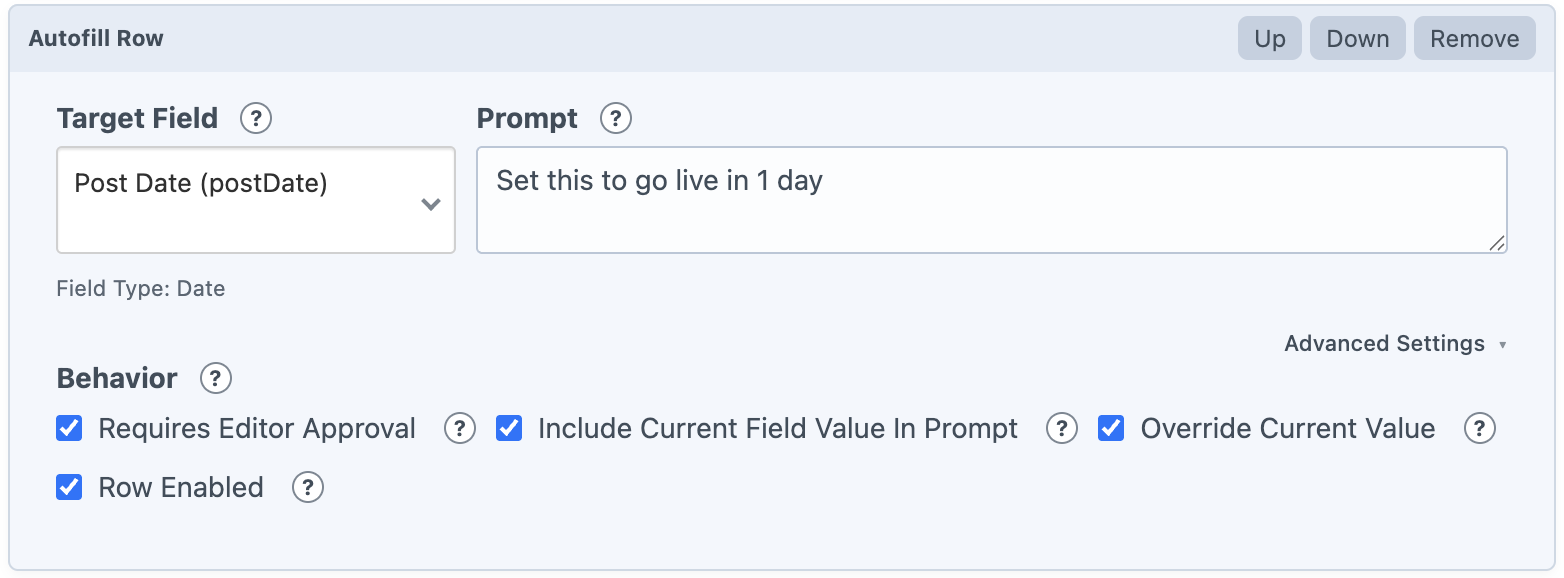
Each generation row includes advanced behavior switches:
Requires Editor Approval shows the suggestion in the review flow before it is applied.
Include Current Field Value In Prompt sends the field's current value as context so AI can refine or preserve existing content.
Override Current Value controls whether Autofill should replace fields that already have content. When disabled, populated fields are skipped.
Row Enabled lets you temporarily remove a row from generation without deleting its prompt.
Some field types add extra settings. Relationship fields can limit candidate lists, while SEOmatic fields can choose which SEO properties are included in the prompt contract.
SEO Fields
When an Autofill row targets a SEOmatic field, the advanced settings include a SEO Prompt Includes section. These options control which SEOmatic properties are included in the AI prompt and returned in the generated suggestion.
Include SEO Title + Source tells Autofill to generate the SEO title value and include the supporting source setting that SEOmatic uses for that title. Include Site Name Position + Source includes SEOmatic’s site name placement setting, such as whether the site name should appear before or after the title. Include SEO Description + Source includes the SEO description value and its source setting. Include SEO Keywords + Source includes the SEO keywords value and its source setting.
Disable any of these options when you only want Autofill to manage part of the SEOmatic field instead of asking AI to fill every supported SEO property.
Related Element Fields
Related element fields include fields such as Entries, Categories, and Tags. These fields can have many possible values, so Autofill includes a Related Selection Scope setting to control how many possible options are sent to AI.
Mode controls whether AI can choose from a limited shortlist or from all available related elements. Top N sends only a smaller ranked list of candidates, which keeps prompts shorter and usually makes responses faster and more focused. All sends the full candidate list, which can be useful for small sites or tightly scoped fields, but may create larger prompts when many entries, tags, or categories exist.
Top N controls the size of the shortlist when Mode is set to Top N. For example, a value of 25 means Autofill will send up to 25 candidate items for AI to choose from.
Link Fields
Link fields include a Link Candidate Scope section. This controls which element candidates are sent to AI when the Link field supports links to entries, categories, or assets.
Each supported link target type has its own settings for Entries, Categories, and Assets. Mode controls how candidates are selected. Top N sends a limited shortlist. Most Recent sends recent candidates. All sends every candidate for that link type. None prevents candidates for that link type from being included.
Count controls how many candidates are sent when the mode uses a limited list, such as Top N or Most Recent. Text-based link types do not use candidate lists, so these settings are mainly useful when the Link field can point to Craft elements.