Overview & Getting Started

Autofill helps editors turn text-based notes, product details, briefs, or source copy into complete Craft entries. Add an Autofill field to an entry type, configure the fields it should populate, and editors can generate structured suggestions directly from the entry edit screen.

The plugin is designed around reviewable AI output. Autofill builds a structured prompt from your field configuration, asks the selected AI model for JSON suggestions, normalizes those suggestions for Craft fields, and lets editors review values before applying them.
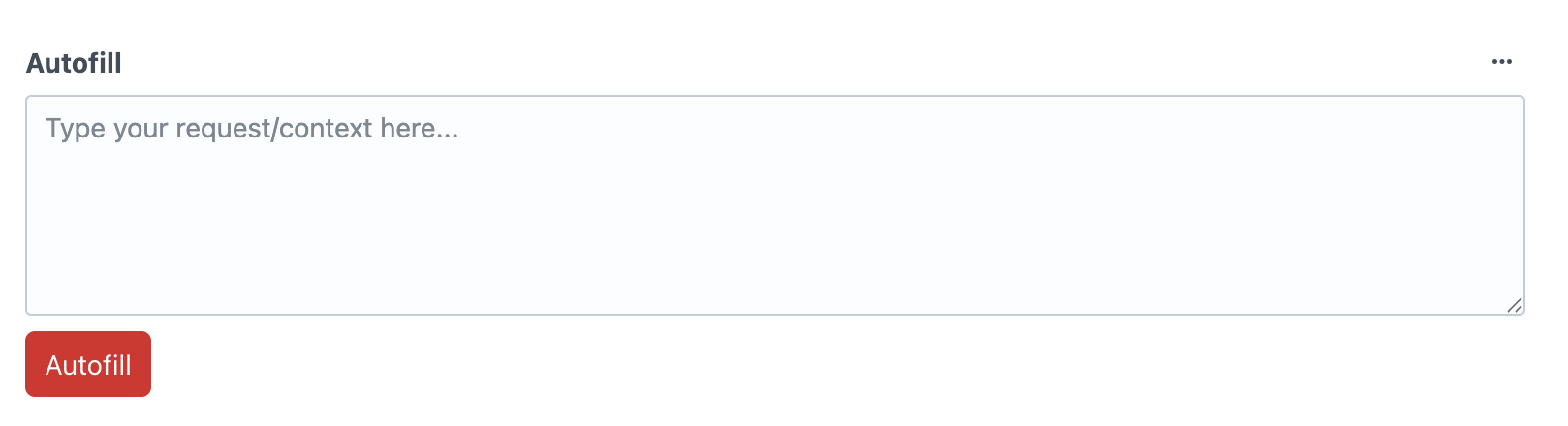
Basic autofill field

A typical setup has three parts: a global AI model configuration, an Autofill field attached to an entry type, and generation rows that tell Autofill which fields to fill.


Requirements

Autofill requires Craft CMS 5.0.0 or later and PHP 8.2 or later.

The current provider integration uses OpenAI, so you will also need an OpenAI API key available to Craft through an environment variable.

Installation

Install Autofill from the Craft Plugin Store or require it with Composer, then install the plugin with the autofill plugin handle.

composer require jt-dev/craft-autofill
./craft plugin/install autofill
Autofill plugins installed page

Basic Setup Flow

Most sites can think about Autofill setup in three parts: connect an AI model, create an Autofill field with prompts, then let editors generate and review suggestions.

1. Set up an AI model

Add your OpenAI API key to the environment, then create an enabled model configuration in Autofill settings. This gives Autofill a model to use when generating suggestions.

Autofill settings page model config

2. Set up an Autofill field with prompts

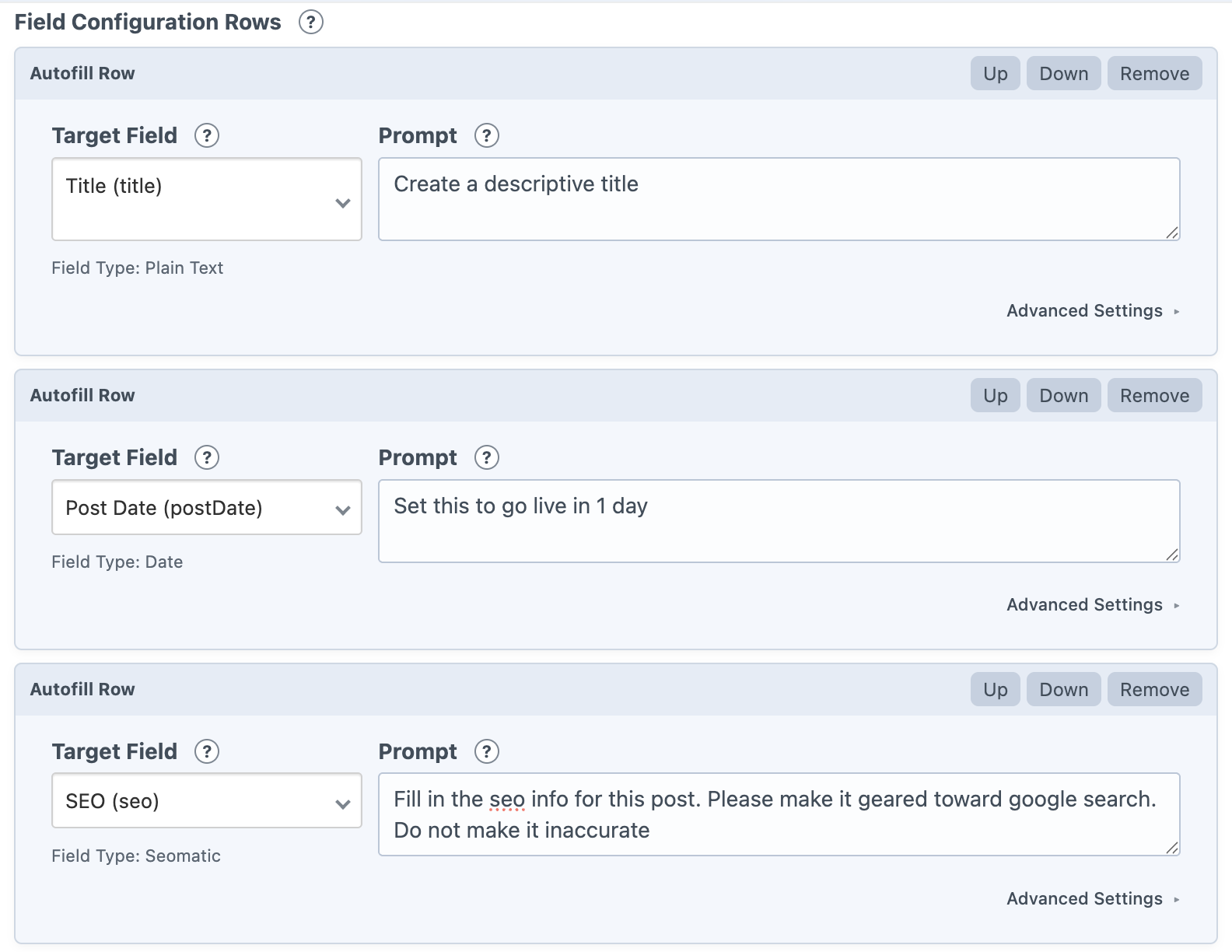
Create an Autofill field, choose the entry type it belongs to, and add generation rows for the fields Autofill should populate. Each row targets one field and includes the prompt that explains what should be generated.

You can also add a global prompt for shared guidance, such as tone, brand rules, formatting expectations, or SEO direction.

Autofill field configuration rows

3. Let editors Autofill entries

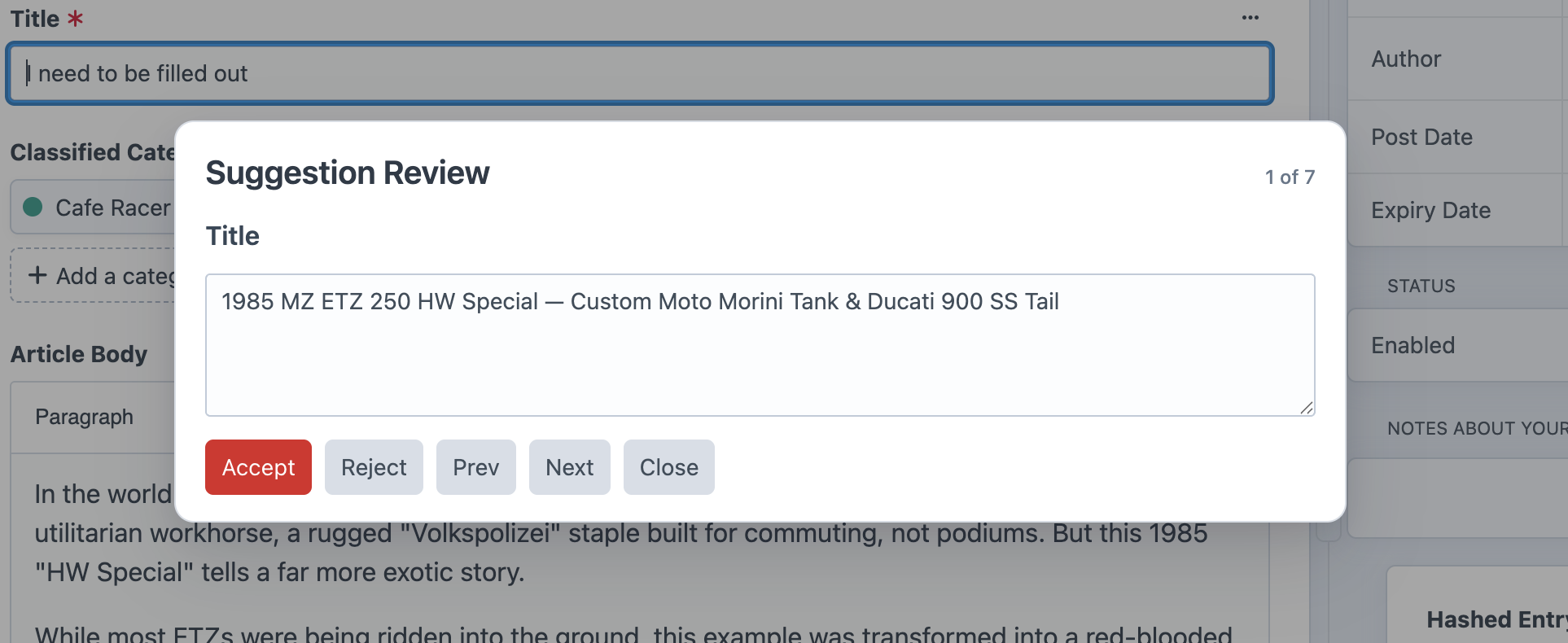
Once the field is added to an entry layout, editors can enter text-based source material, click the Autofill action, review the generated suggestions, make edits if needed, and apply the values back to the entry.

Autofill suggestions are applied server-side, so the entry must already exist before generated values can be saved back to it.

Autofill suggestion review