Editor Workflow
Editors use Autofill directly from the entry edit screen. The field gives them a focused way to turn text-based source material into structured field suggestions without leaving the entry.
The basic workflow is simple: add any needed source material, click the Autofill action, review the generated suggestions, then apply the values that should be saved to the entry.
Workflow With a Prompt Box
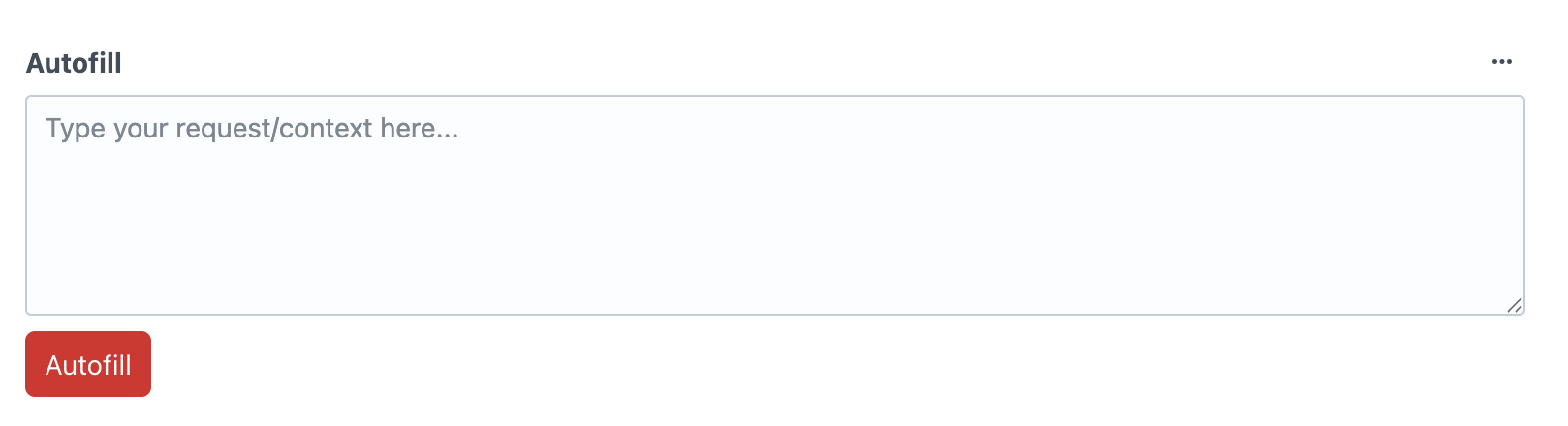
When the prompt box is shown, editors can add notes, instructions, source copy, product details, or other text-based context before clicking the Autofill action.
This is useful when the editor has new information that is not already stored on the entry, or when they need to steer the generated suggestions for a specific update.
Workflow Without a Prompt Box
When the prompt box is hidden, the editor experience is even simpler. Editors click the Autofill action and rely on the field configuration, global prompt, context rows, and existing entry values to guide generation.
This works well for repeatable workflows where admins want tighter control over how fields are filled and do not want editors writing their own instructions.

Reviewing Suggestions
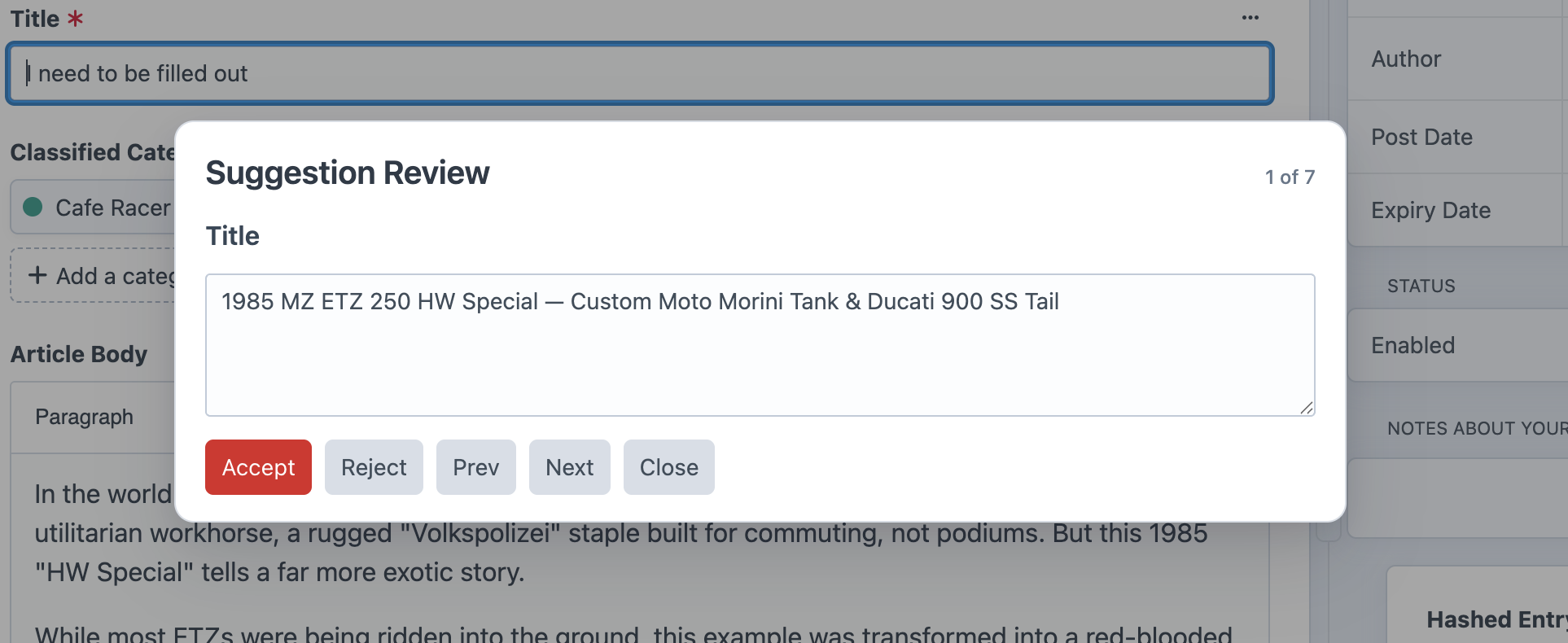
The review modal shows generated suggestions one at a time. Each suggestion is rendered with an editor that matches the target field type as closely as possible, so editors can adjust values before applying them.
Rows marked as requiring approval appear in the review flow. This gives editors a chance to confirm the content, make small edits, or skip values that are not right for the entry.
Applying Suggestions
Suggestions are applied server-side and saved back to the entry. Because of that, the entry must already exist before generated values can be applied.
If an entry has not been saved yet, save it first, then run Autofill again. This gives Autofill an entry ID to update when suggestions are accepted.