Ratings

Give your site a customizable ratings field
Give your site a customizable ratings field
After installing the plugin create a new ratings field:
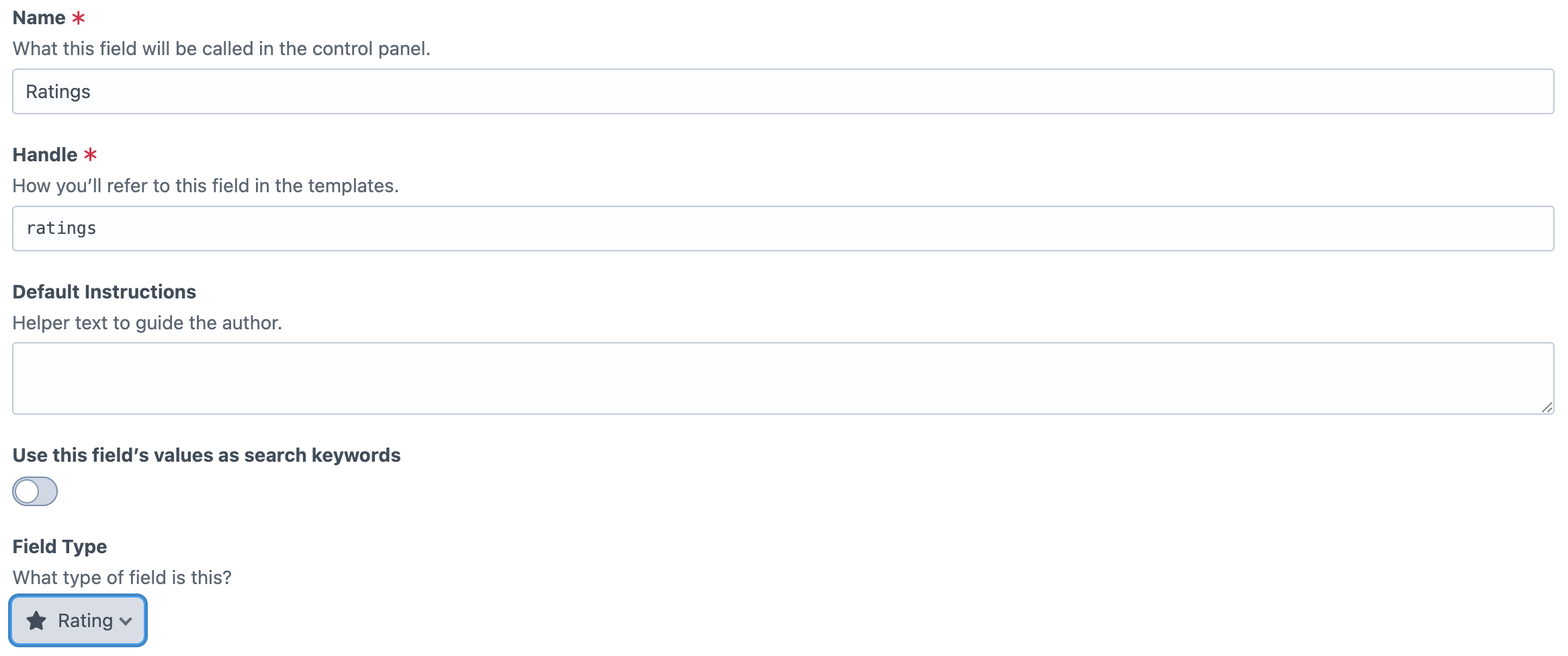
Add it to your desired entry type(s) then render it into your templates with one line:
{{ craft.engagement.render(entry.myRatingFieldHandle) }}***Note*** By default the field settings has the field disabled for all entries. This can either be turned on for all entries or the editors will need to be set up with the ability to turn it on an entry by entry basis
Being a built in field, you can access the properties of the rating for that specific entry anywhere in your templates so you can display the results of your rating field to your users.
Use these Rating field properties in Twig when you need to read current widget configuration, aggregate rating data, or display text/behavior settings in templates. In practice, you’ll usually access them from your field handle (for example, entry.ratingHandle.average) and output only the values you need.
| Setting | Description |
|---|---|
enabled | Whether the rating widget is enabled for this entry. |
id | Aggregate record ID for this entry/field/site context. |
elementId | Craft element ID the rating belongs to. |
fieldId | Craft field ID for this rating field. |
siteId | Site ID for this rating context. |
average | Current average rating value. |
voteCount | Total number of submitted ratings. |
scale | Maximum rating scale (for example, 5). |
icon | Active icon mode (star, heart, thumbs, emoji, customSvg). |
emojiIcon | Emoji character used when icon mode is emoji. |
customSvg | SVG markup used when icon mode is customSvg. |
allowGuestRatings | Whether guests are allowed to submit ratings. |
allowUserRatingChange | Whether users can change an existing rating. |
headingText | Optional text shown above the rating widget. |
clickToRateText | Text shown before the current user has rated. |
yourRatingText | Text shown after the current user has rated. |
percentage | Computed value: average converted to a 0–100 percentage. |
roundedAverage | Computed value: average rounded to one decimal place. |
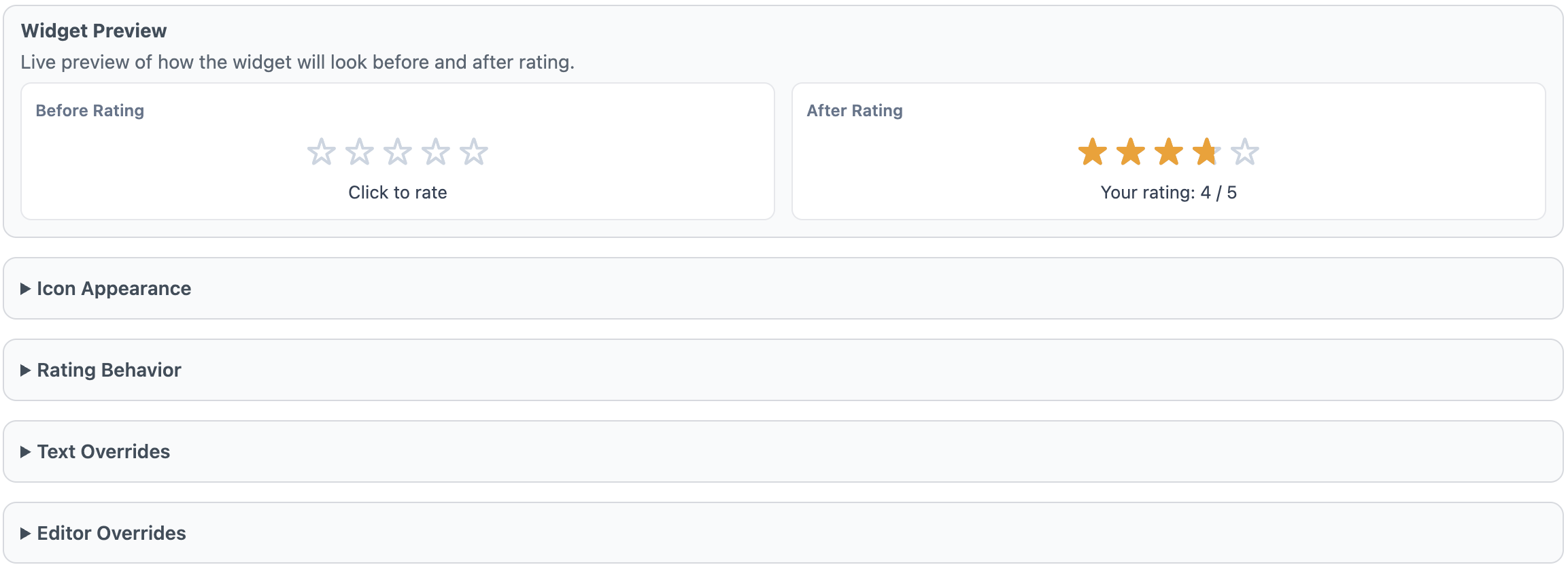
The Rating field settings let you control how ratings look, behave, and can be customized by editors. At a high level, you configure the visual style (icon mode and scale), interaction rules (guest access and whether users can change ratings), display text, and optional per-entry override permissions for editorial teams.
The Widget Preview shows a live “Before Rating” and “After Rating” example so you can quickly validate your icon choice, scale, and text settings before saving. It is a visual check only and does not save or cast real ratings.
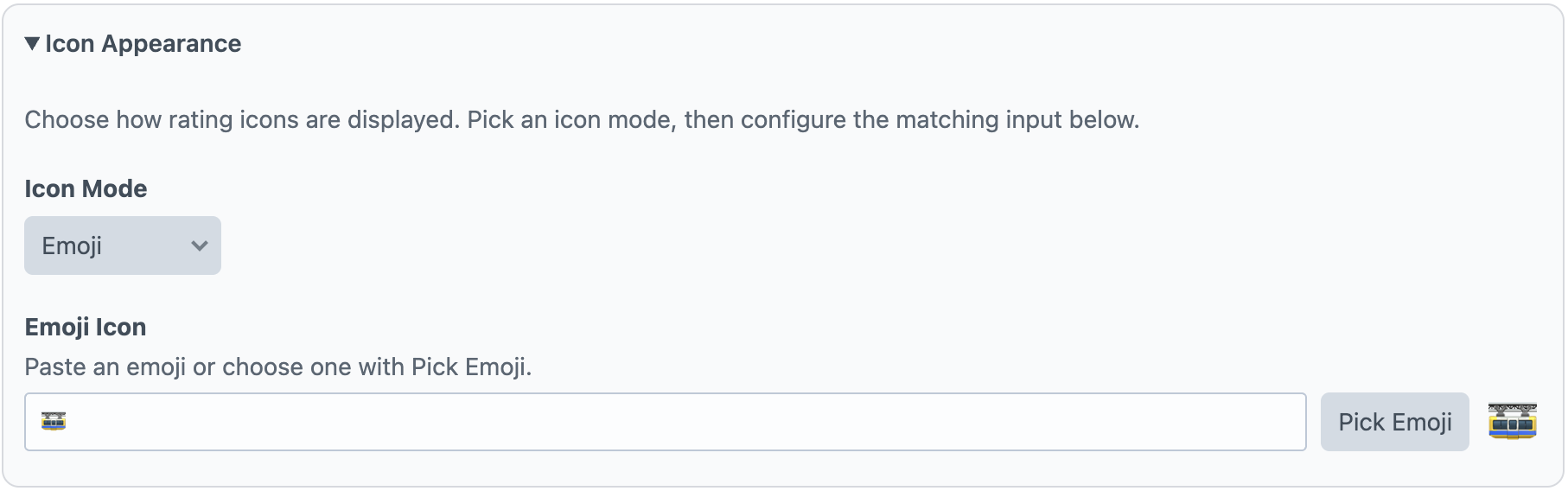
Use Icon Appearance to choose how each rating step is rendered. Icon Mode supports built-in options (such as star, heart, thumbs, emoji, and custom SVG). If you select Emoji, set the Emoji Icon. If you select Custom SVG, paste one SVG icon in Custom SVG Markup; the widget repeats that icon across the configured scale.
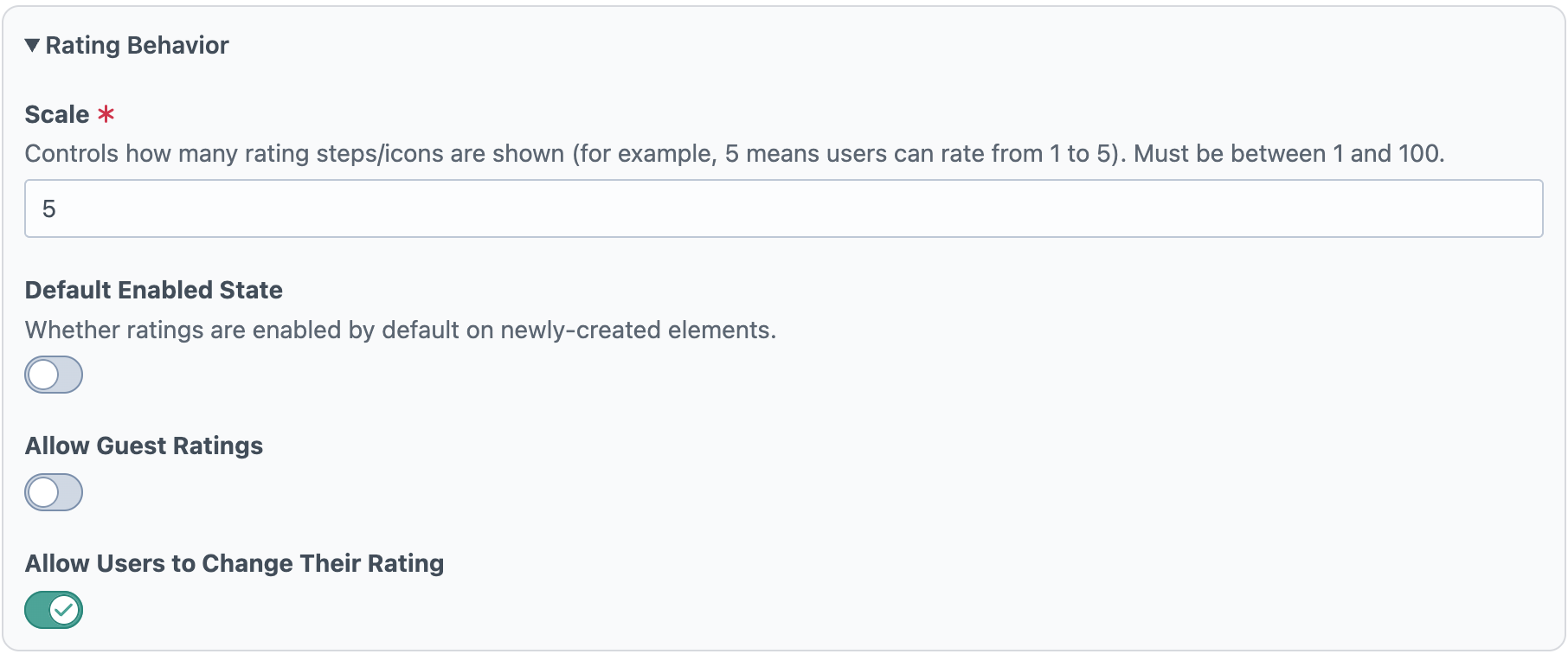
Scale controls the number of rating steps shown (for example, 5 creates a 1–5 rating). Default Enabled State determines whether new elements start with the widget enabled. Allow Guest Ratings controls whether non-logged-in visitors can rate. Allow Users to Change Their Rating controls whether a user can update a previously submitted rating.
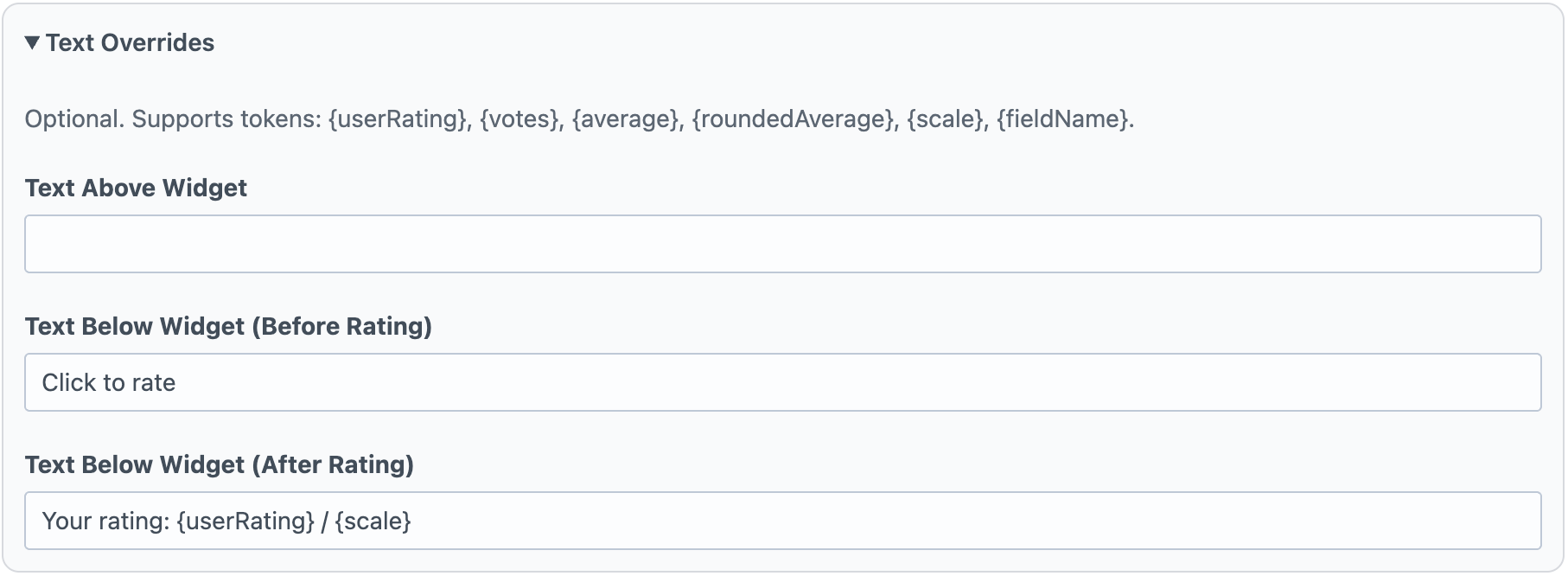
Text Overrides controls the optional messages around the widget. Text Above Widget appears above the icons, Text Below Widget (Before Rating) appears when no user rating exists yet, and Text Below Widget (After Rating) appears after a rating is submitted. These fields support rating tokens such as user rating, vote count, and average values.
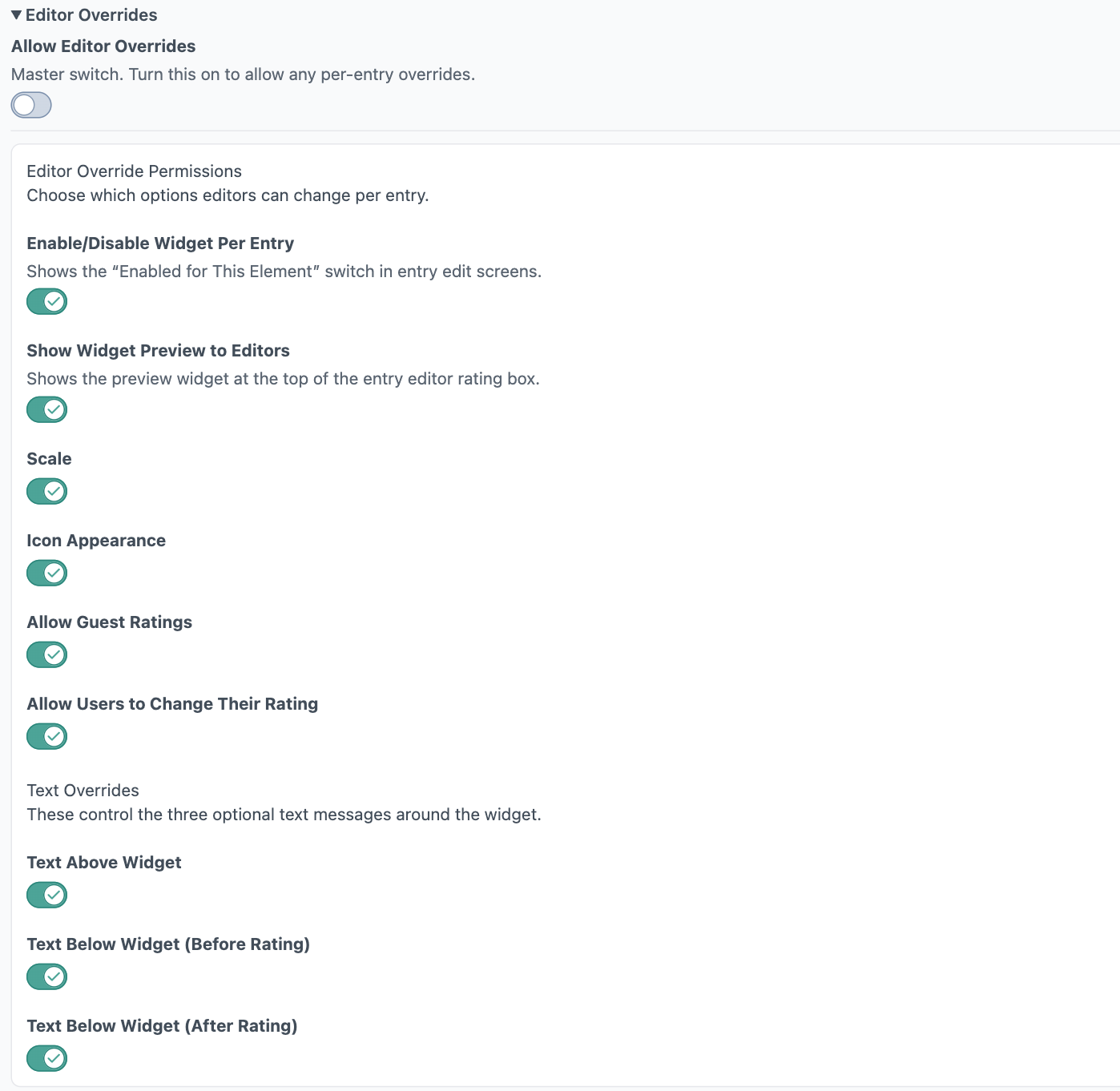
Allow Editor Overrides is the master switch for per-entry customization. When enabled, you can grant granular permissions for what editors may change per entry: widget enabled state, preview visibility, scale, icon appearance, guest-rating behavior, user rating-change behavior, and each text override field. This lets developers keep defaults centralized while allowing controlled flexibility at the content-entry level.