How to Plan a WordPress to Craft CMS Migration
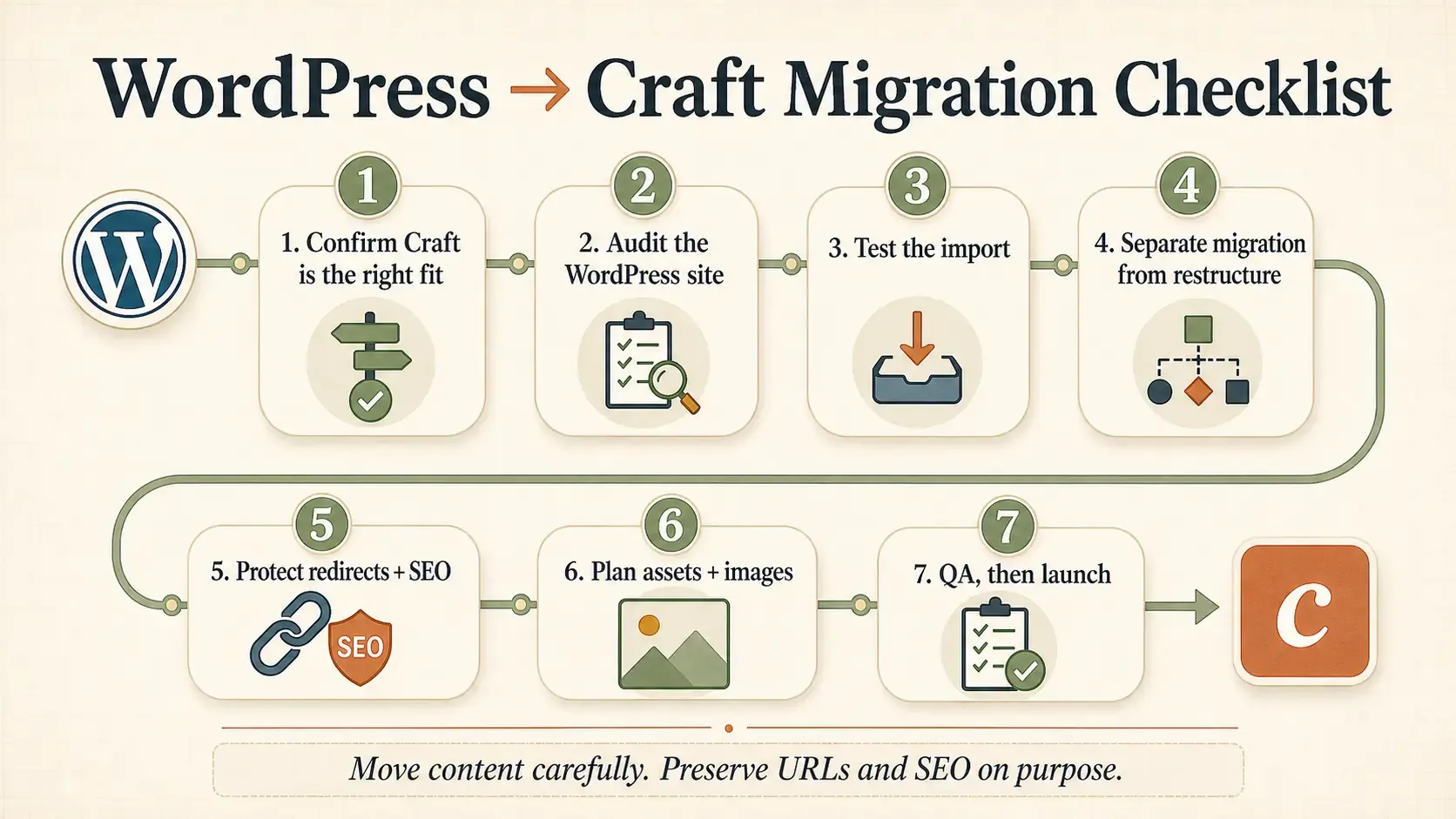
If you’re thinking about moving from WordPress to Craft, this is the checklist I’d use to make a solid plan:
- Make sure Craft is actually the right fit.
- Audit what your WordPress site is doing now.
- Test the import and see what maps cleanly.
- Keep the migration separate from a full site restructure.
- Treat redirects and SEO as their own part of the project.
- Plan assets and image handling early.
- Finish with QA and launch prep.
That’s the short version. Here’s what each step actually looks like.
1. Make sure Craft is actually the right fit
Before you even think about importing content, you need to decide whether Craft is the right CMS for the site.
In my experience, Craft makes the most sense when a site has outgrown the normal WordPress setup and you’re tired of forcing everything through plugins, theme logic, and random workarounds. If it’s built well, it can be faster, easier to maintain, more secure in practice, and a lot less frustrating to work with long-term. No more heavy plugins with one feature you actually want and a bunch of bloat that no one asked for.
It also gives you more control over your content model, which is a big deal if the site is more custom and not just running on a theme plus a pile of plugins. Another plus is working with the Craft team has been great in my experience. On my first WordPress to Craft migration, I was having problems with the utility not working (my own fault) and I reached out to Craft support and they got me sorted the same day!
The downside is that it’s a smaller ecosystem. There are fewer developers, less off-the-shelf stuff, and fewer plug-and-play solutions. Though the quality and the community is one of the things that Craft is known for. That can be a bad thing or a good thing depending on the site. If your business mostly needs a well-structured marketing site or content site, Craft can be a really strong fit. If your site depends heavily on page builders, theme ecosystems, or very WordPress-specific workflows, the move may be more work than you think. For the vast majority of requirements, Craft can be a great option.
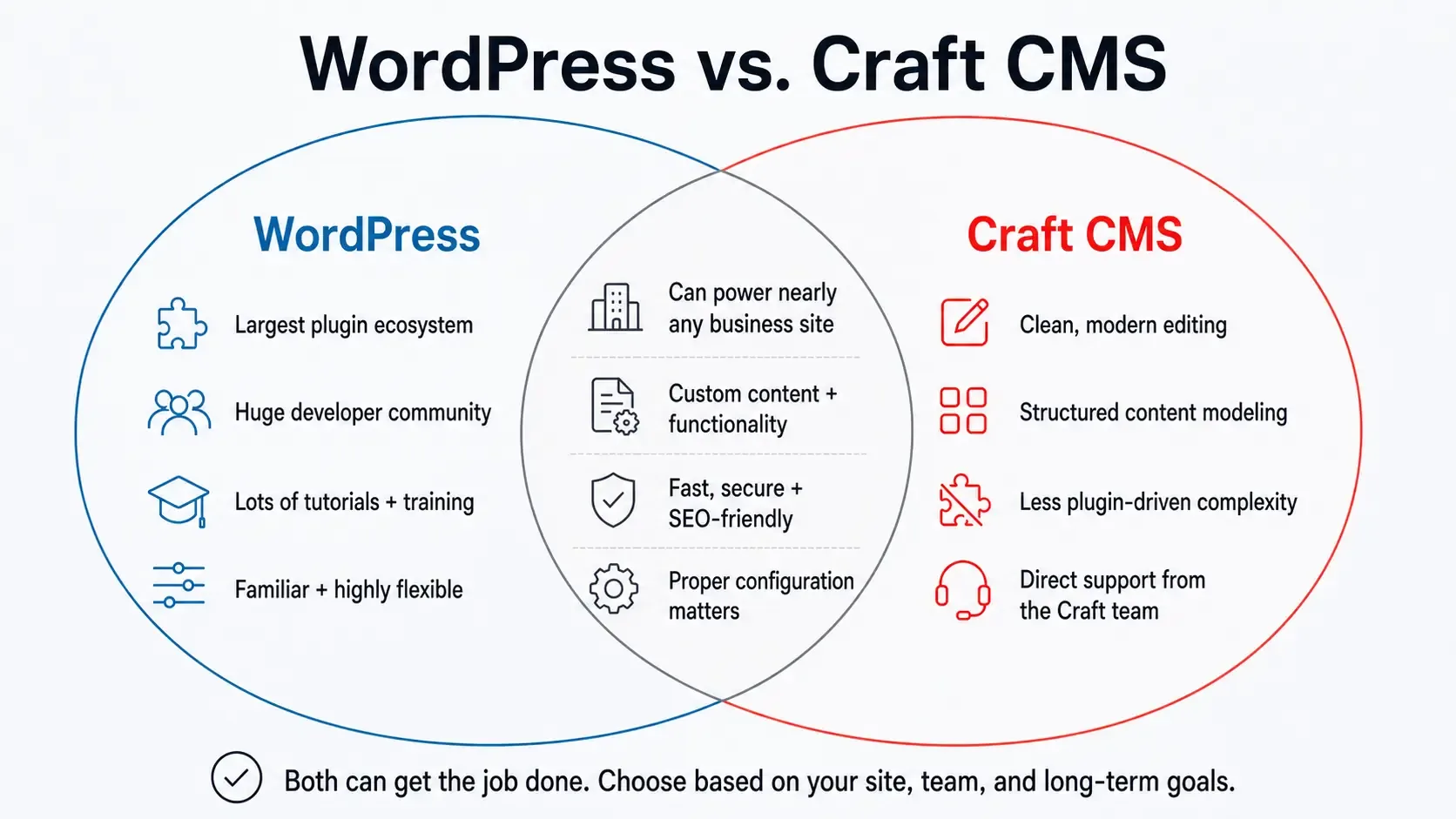
Craft also has a great comparison article on the two CMSs here.
2. Audit what your WordPress site is doing now
The biggest thing before a migration is having a solid grasp on what the current site looks like and the most important parts that need to be preserved.
That means looking at the structure of the site, the content types, the taxonomies, the SEO setup, the media library, the redirects, and any plugin-driven functionality that people have quietly come to depend on over time.
A lot of the normal content stuff will map over fine. The bigger question is whether the parts around that content are going to map cleanly enough to make the migration worth doing. Most sites have a tendency to tack on features that are not useful over the years. This is especially true when every feature you can think has a plugin to add it. Knowing what needs to be there and what doesn't is essential.
This is also where Craft’s WordPress import tooling is helpful. One thing I like about it is that you can test the import, inspect the result, and get a feel for what the backend of the site will look like in Craft before you fully commit. That alone makes the planning process a lot easier.
And because Craft works so well locally, you can build the new site while the old WordPress site stays live.
3. Test the import and see what maps cleanly
Basic content usually comes over fine. It’s CMS to CMS. That part is rarely the problem especially given how useful crafts wp-import tool is. If you’re working with content that doesn’t map cleanly through the WordPress importer, I also wrote a guide to importing content into Craft CMS, covering Feed Me, GraphQL, and custom importers.
Where things get messy is with editor specific and plugin-specific content. Gutenberg can map over, but not as cleanly as people sometimes expect. You can work with it, but it’s not going to behave exactly the same way without extra work.
Page builders are the bigger thing I’d watch for. If a site really depends on Elementor-style layout logic or proprietary content storage, that’s where you need to slow down and be honest about how much of this is really a migration versus a rebuild.
That was one of the biggest things I learned doing this. The issue usually isn’t “can I get the content out of WordPress.” It’s “how much of the old editing and layout behavior am I trying to preserve?”
One thing that caught me the first time I did this was tags. In WordPress, tag pages are usually public archive URLs. In Craft, tags don’t work the same way out of the box. At the time, I migrated tags to categories so I could preserve that archive-style behavior more easily. The tag pages were important for my particular site and needed to be set up as such. Moving tags to categories (I would do tags to entries right away instead looking back) was not all that much effort since I was already familiar with Craft.
4. Keep the migration separate from a full site restructure
If I had to give one practical piece of advice, it would be this: don’t migrate platforms and redesign the entire site structure at the same time unless you really have to.
Yes, you can change URLs, navigation, taxonomy structure, page hierarchy, and all of that during the migration. I just usually don’t think it’s the safest way to do it. It is hard to avoid a visual design change for something like this but trying to keep as much of the rest of the site the same is ideal.
I’d rather get the site into Craft as close to the current structure as possible, let it settle, make sure traffic and indexing aren’t falling apart, and then improve the structure after that. Craft is great for making those kinds of improvements later.
That’s especially true if SEO matters. One big change at a time is just easier to control.
5. Treat redirects and SEO as their own part of the project
This is one of the easiest places to get burned.
Before launch, I’d want a full picture of every important URL on the current site and what happens to it after the move. Not just the obvious ones either. I mean old URLs, category pages, tag pages, archived paths, and any redirects already sitting in WordPress.
If the current site uses a redirect plugin, I’d want that history accounted for too. Those redirects are there for a reason, and losing them can create problems you won’t notice until after launch.
I also would not assume SEO metadata is going to work itself out.
In my own case, metadata mattered enough that I actually changed the import code so I could preserve things like meta titles and descriptions the way I wanted. I’m not saying that’s the default solution. I’m not saying I’d recommend that on every project. I’m just saying that was my real experience, and it is just something to consider if your editors have spent hours on certain meta title and descriptions.
If the metadata matters, have the developer verify it. This is especially true for sites that have a strong presence in Google. If custom work is needed, better to know that early. And if you want help thinking through the SEO side of the migration, take a look at my SEO service page.
6. Plan assets and image handling early
This was one of the bigger mistakes I made the first time around.
I didn’t think enough about assets up front, and the site ended up being a lot more image-heavy than I expected. Looking back, I should have spent more time early on understanding the filesystem setup, the asset organization, and how the media library was going to work long-term.
To be fair, the importer does a pretty good job setting up assets by default. That part was solid. But long-term asset planning still matters a lot, especially if the site has a lot of images or multiple editors uploading content.
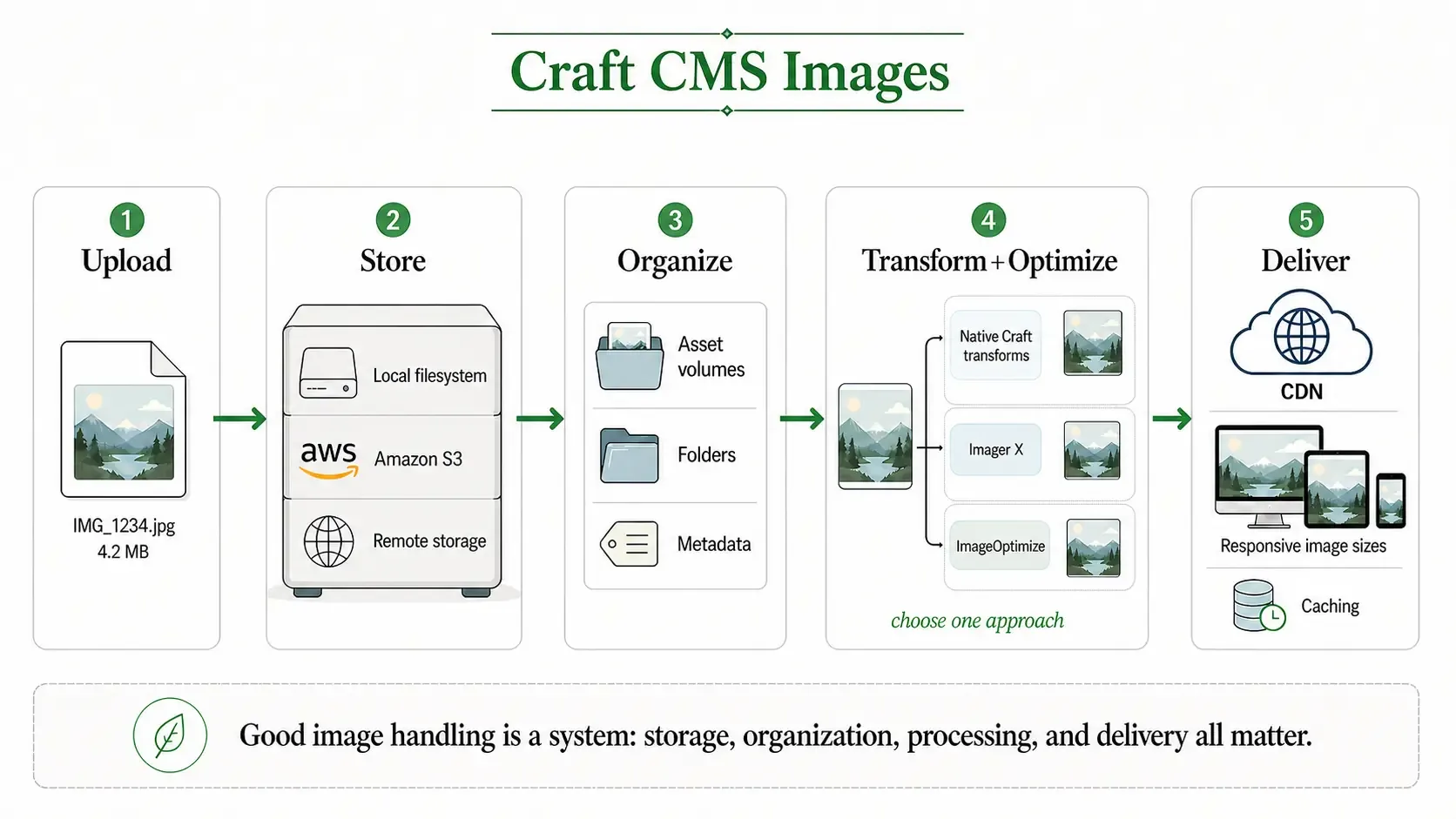
I’d think through where assets live, how they’re organized, how image transforms are handled, and whether the editors uploading images are actually going to keep things web-friendly.
For remote storage, I used the first-party Amazon S3 setup, which worked well. For simpler image handling, native Craft transforms can be enough. That’s what I use on my own site. If you’ve got a lot of uploads and want more control over optimization, I’d look at ImageOptimize or Imager X.
7. Finish with QA and launch prep
Once you’ve got the content over and the frontend looking right, the last step is making sure the site is actually ready to go live.
That means checking templates, redirects, metadata, images, forms, search, internal links, sitemap behavior, and anything else that could quietly break once real people start using the site.
One thing I found is that people coming from WordPress often pick up Craft pretty quickly if the admin is set up well. On one site I worked on, we barely had to do training. People just understood it, which was honestly smoother than I expected.
There are also a few plugins I’d strongly consider here. Retour is close to essential for a lot of migrations. For SEO, I think SEOmatic makes sense when SEO is a bigger priority and you want a fuller setup. If the site is simpler, SEOMate can still be a really good option. That’s what I use on my own site, partly because the site is smaller and partly because I’m comfortable handling more of that in code.
Final thought
The import is not the hard part.
The hard part is understanding what the WordPress site is really doing, what needs to survive the move, and how to get it into Craft without quietly breaking SEO, media handling, or the editing experience.
If I had to sum it up, I’d say this:
Move the content carefully, preserve the URLs and SEO on purpose, and don’t turn the migration into a full rebuild unless you actually want a full rebuild.
Additionally, if you would like my help, check out my WordPress to Craft migration service. I’m happy to handle the migration for you or just help you think through the risky parts before you start.