How to Export Content From Craft CMS
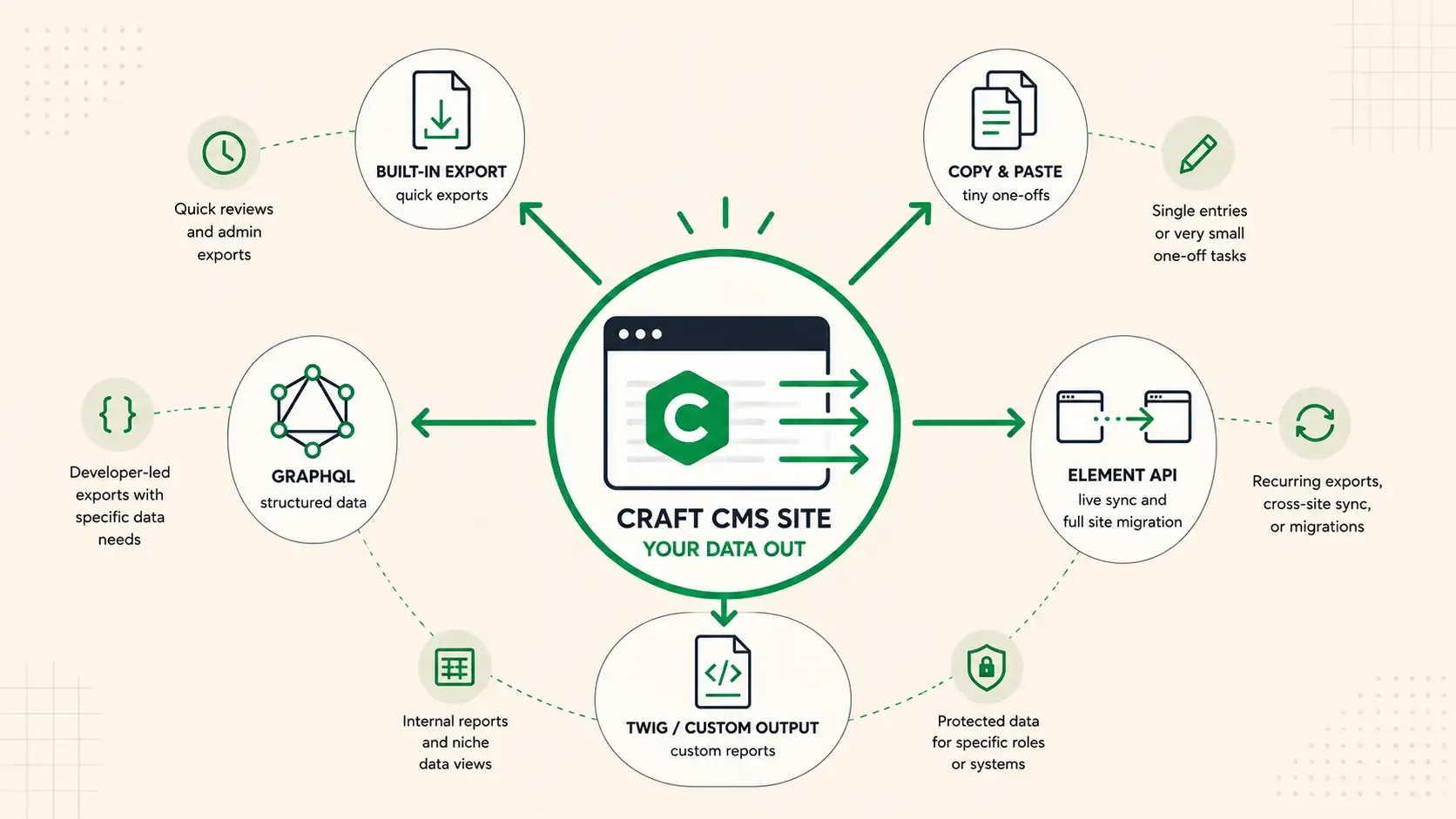
There are a few different ways to export content from Craft CMS, and the right one mostly comes down to how much data you need, how often you need it, and whether this is a one-off task or something that needs to happen consistently.
These are the methods I discuss in this post:
- Built-in Export
- Manual Copy and Paste
- GraphQL
- Element API
- Twig/Custom code
For each one, I share a brief overview and try to clarify when the method is best used.
Quick Comparison
| Method | Best For | Pros | Cons |
|---|---|---|---|
| Built-in Export | Quick admin exports | Fast, simple, built into Craft | Manual, limited for larger or more complex exports |
| Manual Copy and Paste | Very small one-off exports | Easy, no setup, good for inspection | Slow, not scalable |
| GraphQL | Structured developer-led exports | Flexible queries, precise field control | More technical, not the simplest option |
| Element API | Recurring exports and cross-site syncing | Clean JSON feeds, highly customizable, stays current | Takes setup and testing |
| Twig / Custom Output | Internal reports and niche views | Fast to tailor, useful for internal tools | Usually not a full export pipeline |
Start With the Goal
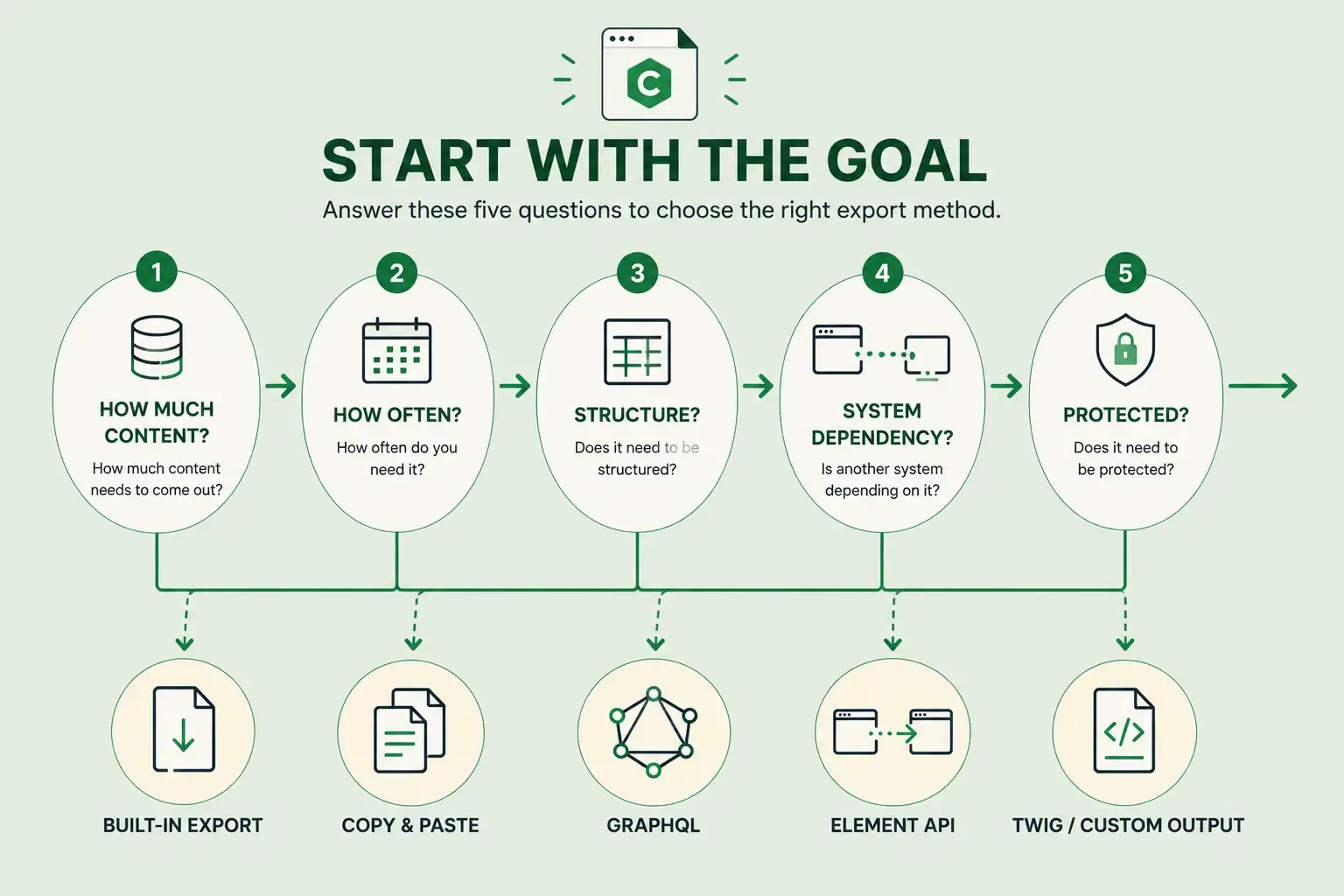
Before worrying about the export method, I would first figure out what the export is actually for. That changes the answer more than anything else.
If someone just needs to look at some data, the built-in export may be enough. If another system is going to rely on the content every week, that is where I would lean more toward something like Element API.
The main questions I would ask are:
- How much content needs to come out?
- How often do you need it?
- Does it need to be structured?
- Is another system depending on it?
- Does it need to be protected?
Built-In Export
The built-in export button is probably the fastest way to get raw content out of Craft. I have only used it a handful of times since I am usually the one setting systems up instead of working with content every day, but from my experience it works well for quick admin tasks.
The downside is that it is still manual. You are going into the control panel, exporting what you need, and repeating that process when you need it again. It is fine for quick reviews, but not something I would want to build a recurring workflow around.
I would also be a little more careful with more complex fields. Once you get into relational content, Matrix-like content, or embedded entries, I would want to verify exactly what is coming out before relying on it.
Manual Copy and Paste
This one is obvious, but it is still real. If you are only exporting one article or a very small batch of content, manually copying and pasting it is still a perfectly reasonable answer.
It is also a good way to inspect a few entries before building something more custom. If I am trying to understand what content someone actually needs, manually reviewing a few examples is often the fastest way to understand the problem before automating it.
It is not scalable, but for one-off work it is still valid.
GraphQL
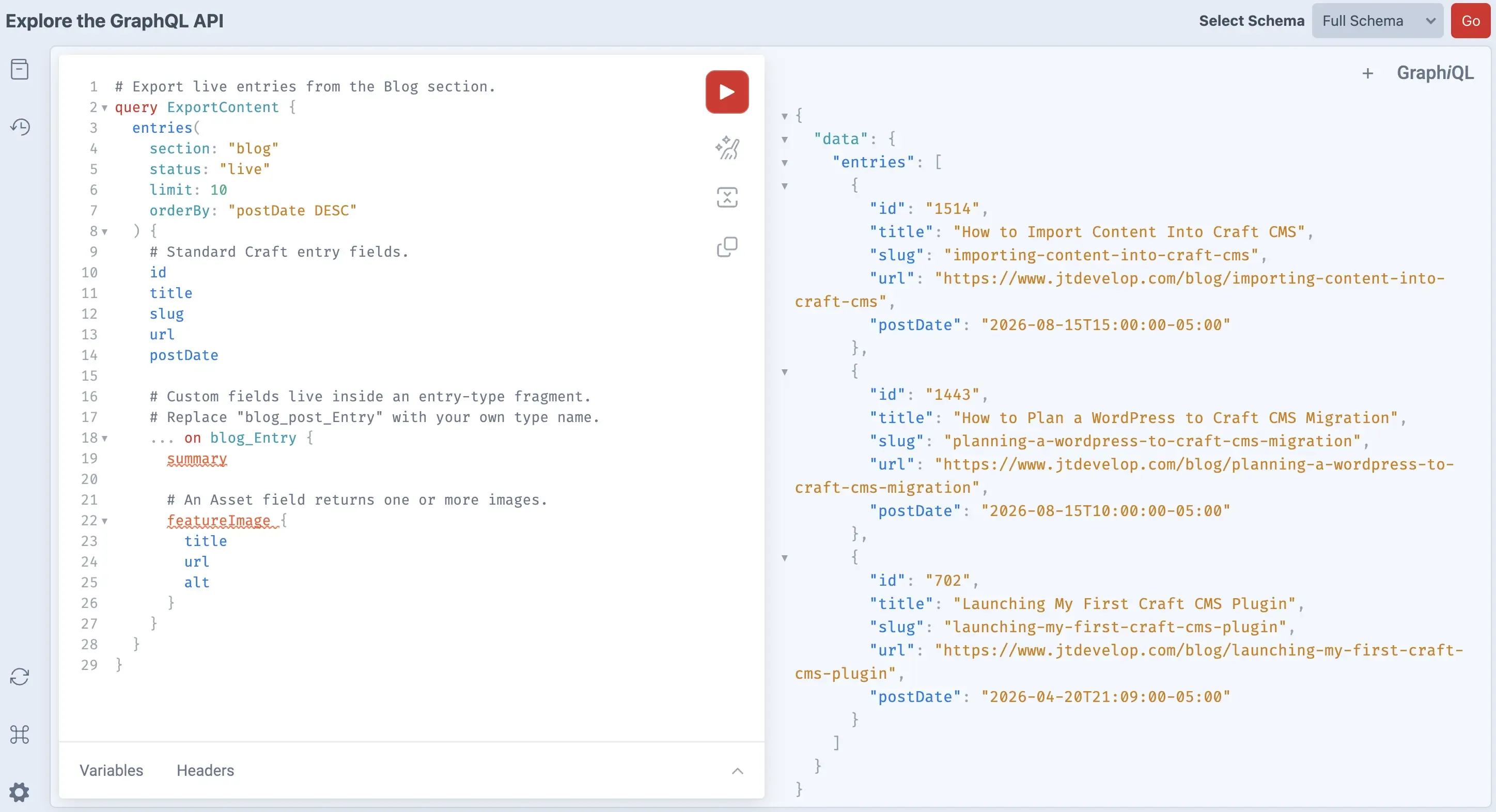
GraphQL makes sense if the developer already knows it well. Craft supports it, and it gives you a structured way to define exactly what data you want from entries, assets, and other elements. You can read more in the Craft CMS GraphQL documentation.
For example, this query returns a list of live blog entries with the fields another system would commonly need:
query ExportBlogEntries {
  entries(section: "blog", status: "live") {
    id
    title
    slug
    url
    ... on blog_Entry {
      postDate
    }
  }
}
The main advantage is control. You can decide what fields come back and shape the response around whatever the next system actually needs.
The downside is that it is still a developer-heavy solution. So for me, GraphQL is a good option if your developer already uses it, but usually not the first thing I would reach for on a basic export job.
Element API
This is the option I have used the most, and if I am moving content out of Craft in a serious way, this is usually my favorite.
The biggest reason is that it gives you a clean JSON feed that can be shaped around exactly what another site or service needs. It stays current as content changes, which makes it much better for recurring exports than something manual. It is also built by the Craft team, so long-term support and migration paths are nearly guaranteed. You can find installation and configuration details in the Element API documentation.
A basic endpoint can return only the fields another system needs:
<?php

use craft\elements\Entry;

return [
    'endpoints' => [
        'content-feed' => [
            'elementType' => Entry::class,
            'criteria' => [
                'section' => 'articles',
                'status' => 'live',
                'orderBy' => 'postDate DESC',
            ],
            'transformer' => function(Entry $entry) {
                return [
                    'id' => (int) $entry->id,
                    'title' => $entry->title,
                    'slug' => $entry->slug,
                    'url' => $entry->url,
                    'updatedAt' => $entry->dateUpdated?->format(DATE_ATOM),
                ];
            },
        ],
    ],
];
A good example is a classifieds setup I have worked with. Users submit content into Craft through the Guest Entries plugin, and once those entries are in the system, we expose them through a Craft endpoint if certain conditions are met, like a field being checked and the entry being live and enabled. From there, we can define images, categories, tags, and basically whatever fields the other site needs.
For larger exports, you can filter the entries and include related assets, categories, and tags:
'partner-feed/<partnerSlug:{slug}>' => function(string $partnerSlug) {
    return [
        'elementType' => Entry::class,
        'criteria' => [
            'section' => 'articles',
            'status' => 'live',
            'relatedTo' => [
                'targetElement' => $partnerSlug,
                'field' => 'partnerSites',
            ],
        ],
        'paginate' => true,
        'elementsPerPage' => 50,
        'transformer' => function(Entry $entry) {
            return [
                'id' => (int) $entry->id,
                'title' => $entry->title,
                'summary' => (string) $entry->summary,
                'image' => $entry->featureImage->one()?->getUrl(),
                'categories' => array_map(
                    fn($category) => [
                        'title' => $category->title,
                        'slug' => $category->slug,
                    ],
                    $entry->categories->all()
                ),
                'tags' => array_map(
                    fn($tag) => $tag->title,
                    $entry->tags->all()
                ),
            ];
        },
    ];
},
If the other system needs to rebuild more complex layouts, a single-entry endpoint can also expose nested entries or Matrix-style blocks. Including the block type lets the import process decide how to handle things like CTAs, embeds, and media.
'content-feed/item/<entryId:\d+>' => function(int $entryId) {
    return [
        'elementType' => Entry::class,
        'criteria' => [
            'id' => $entryId,
            'status' => 'live',
        ],
        'one' => true,
        'transformer' => function(Entry $entry) {
            return [
                'id' => (int) $entry->id,
                'title' => $entry->title,
                'blocks' => array_map(function($block) {
                    return [
                        'type' => $block->type->handle,
                        'heading' => (string) ($block->heading ?? ''),
                        'text' => (string) ($block->text ?? ''),
                        'buttonLabel' => (string) ($block->buttonLabel ?? ''),
                        'buttonUrl' => (string) ($block->buttonUrl ?? ''),
                    ];
                }, $entry->contentBlocks->all()),
            ];
        },
    ];
},
This is also the best option in my opinion if you are moving off Craft over time and content is still changing while the new system is being built. If the old site is still active, and you need the export to stay current, Element API is hard to beat. This option is also supported on legacy sites and older versions of Craft.
If the endpoint is not meant to be public, you should protect it. In my own setups, I have usually used some kind of token validation around the request, and the nice thing is you can customize that logic pretty easily.
Twig and Custom Output
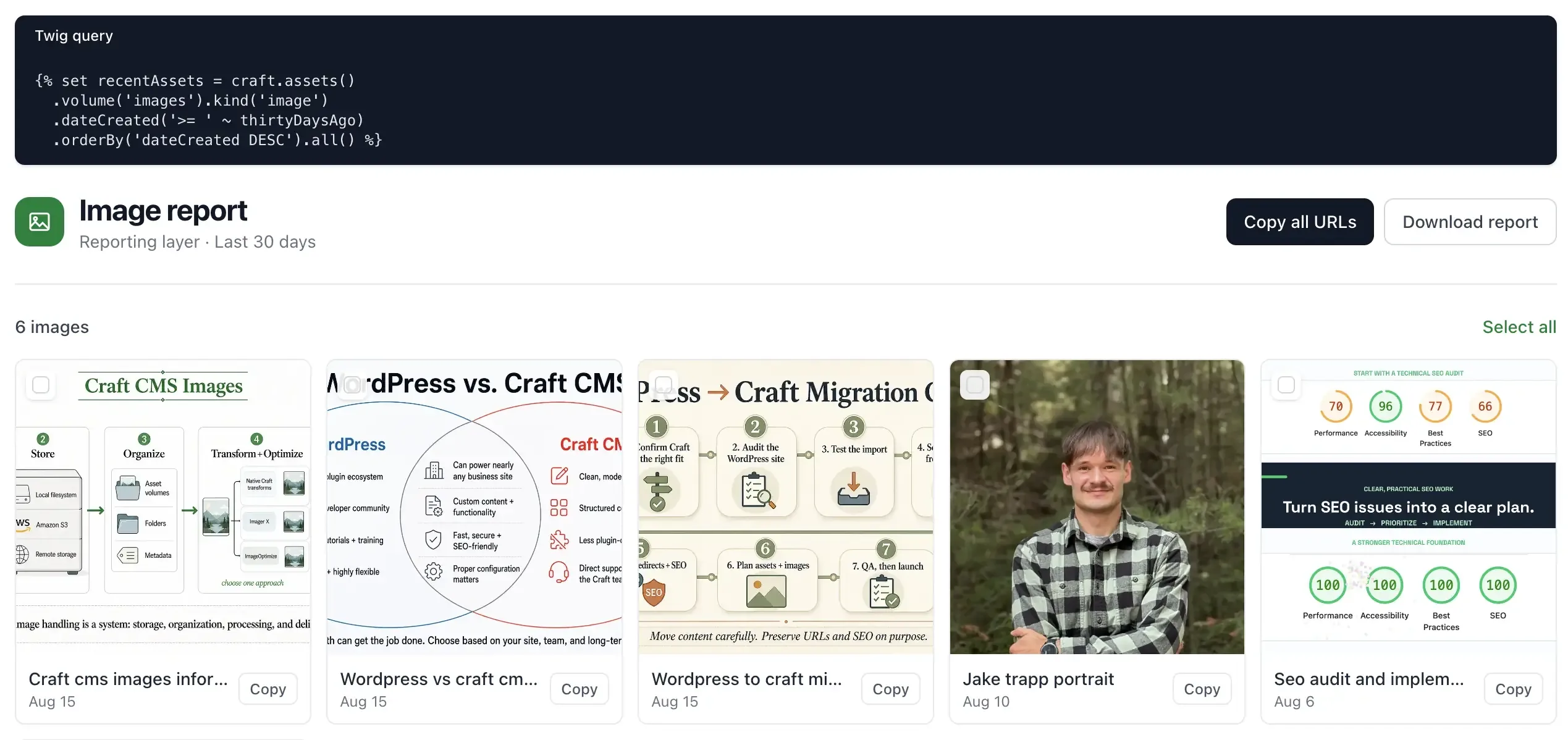
This is probably the most underrated option in the list. Sometimes you do not actually need a formal export feed. Sometimes you just need a page that pulls together very specific data in one place.
A simple example would be if a designer needs every image uploaded in the last 30 days. You could build a quick Twig template that queries those assets, lists them in one place, and makes them easy to review or copy.
That is why I think of Twig more as a reporting layer than a full export tool. It works well when someone needs a niche internal view of data and you want to define exactly what they see without building a full API workflow around it.
If it is not meant to be public, I would control access with normal Craft permissions and user groups. The nice thing about this kind of internal tool option is that putting them together with AI is simple and usually gets the job done super easily.
When Not to Overbuild
This is probably my biggest opinion on exporting content from Craft CMS: do not overcomplicate it if the task does not actually need it.
If someone just needs to review data once, use the built-in export. If they need one article or a small batch of content, copy and paste it. If the export needs to happen regularly and stay consistent, then it starts making sense to build a proper endpoint.
That is really the dividing line for me. The more often the export needs to happen, and the more important consistency becomes, the more it makes sense to build a real export layer.
Final Thoughts
There are a lot of ways to export content from Craft CMS, but most of the time the right choice comes down to frequency, structure, and who is relying on the data.
If the export is quick and simple, the built-in tools are usually enough. If it is tiny, manual copy and paste is still fine. If your team already works in GraphQL, that can be a strong option. If the export needs to stay current and feed another system reliably, Element API is probably the best tool in the stack. And if what you really need is an internal report, a Twig template can honestly be the easiest option.
If you are also trying to move content into Craft, my guide on importing content into Craft CMS pairs well with this one. If the project is part of a larger migration, my WordPress to Craft migration guide covers that side in more detail. And if you need help setting up a more custom export flow, get in touch.